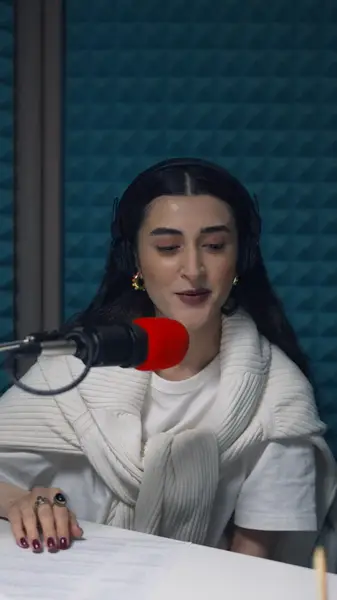
Clean breaks between voices
Split a caption at the exact word where the speaker changes, so no line mixes two people.
Pick the moment, cut it out, and give it captions that break cleanly when the speaker changes and lean on the words that carry the point.
No credit card · 2 free minutes every month · MP4, SRT and VTT export
A full episode asks for an hour; a clip asks for a minute. The strongest clips tend to be one sharp answer, a good disagreement or a line that sums up the whole conversation, cut tight enough to stand alone.
Captions make that clip work in a silent feed, but conversation is harder to caption well than one person talking to camera. Voices trade lines quickly, people interrupt, and a caption that runs across a change of speaker reads as though one person said both halves.
AutoCap times every word, so you can end a caption exactly where one voice stops and start the next where another begins, then emphasize the words that make the moment worth sharing.
Split a caption at the exact word where the speaker changes, so no line mixes two people.
In caption styles with an emphasis treatment, mark single words or whole lines so the key phrase stands out.
Crop the export to 9:16, 1:1, 4:5 or 16:9, or keep the original frame of your recording.
Paid plans take clips of up to five minutes, long enough for a complete thought rather than a clipped soundbite.
Overlapping voices are where transcription struggles most, so fix those words by hand and split lines until the captions follow who actually spoke.
Export the moment from your video podcast as an MP4 or MOV, trimmed to where the thought starts and ends.
Fix guest names, the show's name and any words lost to crosstalk.
Split captions wherever the voice changes, then emphasize the phrase the clip is built around.
Choose 9:16, 1:1, 4:5 or 16:9, render the MP4, and post it wherever the clip is going.
Look for a moment that makes sense without the rest of the episode. A clear question with a complete answer, a surprising claim with its explanation, or a short story with an ending will stand on its own; an inside joke or a callback to something said earlier won't.
Cut a little generously at the start, so the viewer hears the question or setup, and end on the line that lands rather than trailing into the next topic.
In a conversation, each caption should belong to one voice. When a new speaker starts partway through a caption, split it at that word so the switch happens between captions, not inside one.
AutoCap doesn't label speakers automatically. Where it helps, especially when a guest is off camera, type their name at the start of their first caption, as in MARIA:, and leave later lines clean once viewers know who's who.
Keep each caption to a short phrase. Podcast speech is quick and conversational, and short captions give a viewer time to read before the next person cuts in.
A good clip usually turns on one phrase: the number, the name, the unexpected word. Caption styles that include an emphasis treatment let you mark a single word or a whole line so it stands apart from the rest of the caption.
Use it sparingly. One or two emphasized words per caption guide the eye, while emphasis on every other word turns into noise.
Styles that highlight each word as it's spoken suit podcast clips as well, because they add movement to what is often a static shot of people at microphones.
AutoCap works from video files, MP4 or MOV. If your podcast is audio-only, turn the clip into a video first, even a still image or waveform with the audio laid over it, and caption that.
With no faces or gestures to watch, the captions carry most of the clip, so give them a size and position that fill the space you have.
Up to 60 seconds on the free plan, which includes 2 minutes of transcription a month and watermarked exports, and up to 5 minutes on paid plans from $19 a month.
No. It transcribes the words and times each one; you mark speaker changes by splitting captions, and can type a name in where it helps.
9:16, 1:1, 4:5 and 16:9, or the original shape of your recording. The export is cropped to whichever ratio you pick.
Transcription is least reliable during crosstalk, so check those moments closely and correct them by hand. Splitting captions at each change of voice keeps the result readable.
Yes, in caption styles that have an emphasis treatment. Select the word, or a whole line, and turn emphasis on.
The free plan needs no card. Upload a clip, check the captions yourself, and only upgrade when you want the watermark gone.